Open an account at Binance Exchange
Go to the Binance website by clicking this link. You will need to choose a username and a strong password. You will also need to confirm your email address and mobile number.
Verify your account at Binance
Please refer to the following GIF to get a better idea about how to register on Binance.

1. Please visit Binance’s official website (https://www.binance.com) and click the [Register] button on the top right-hand side.
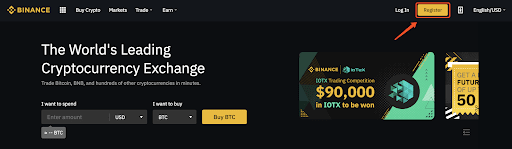
2. On the registration page, please follow the on-screen instructions and insert the email address and password that you’ll use for your account. After reading the TOU carefully, click on [Create account].
Note:
- The password must be a combination of numbers and letters which contain at least 8 characters, one UPPER CASE letter, and one number.
- If you’ve been referred to register on Binance by a friend, make sure to fill in the right Referral ID ( 28551372 ).

3. After clicking register, please choose the option according to your circumstance.

4. After clicking, the system will send a verification code to your email that will be valid for 30 minutes. Please login to your email box to check and enter the verification code in time.

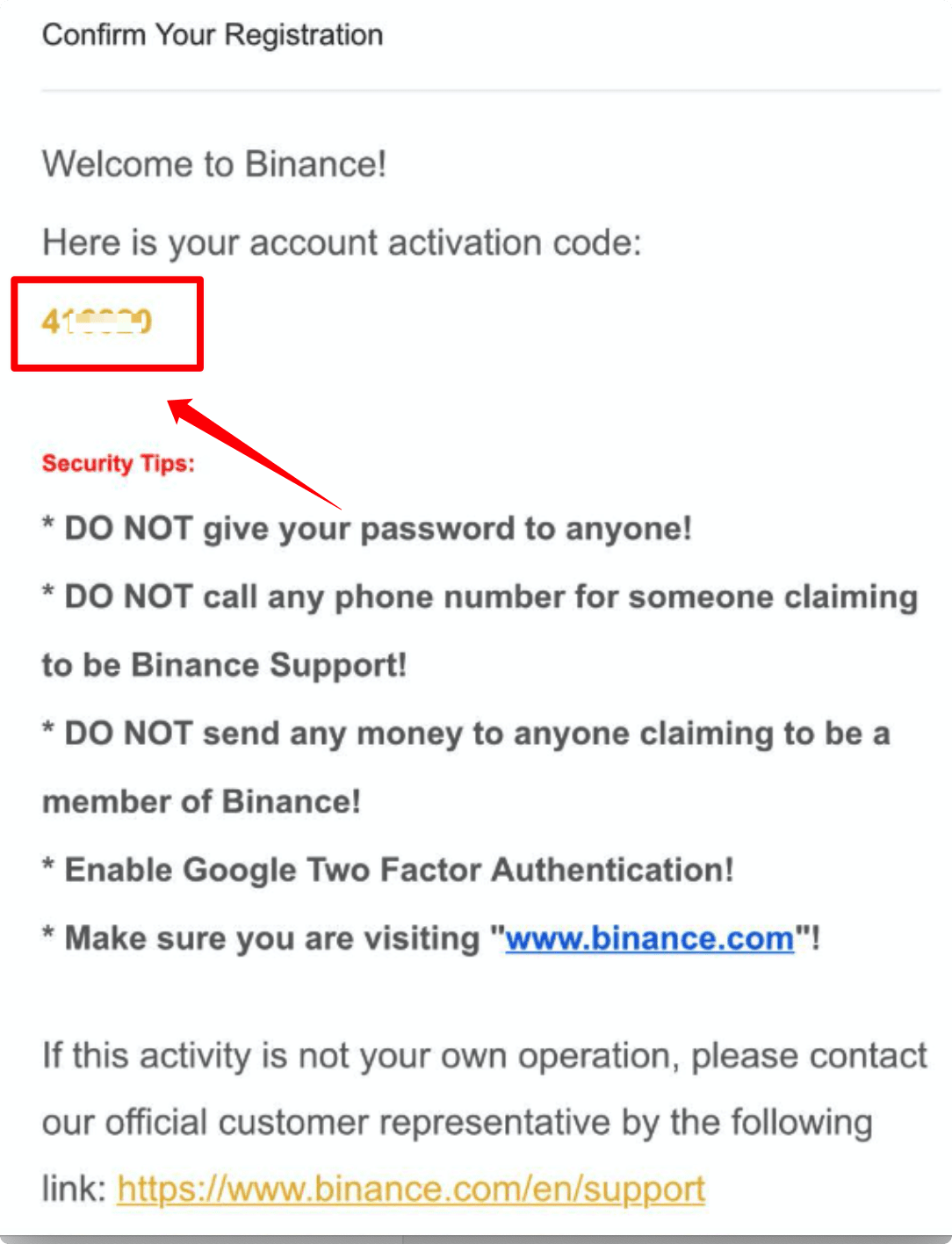
5. After entering the verification code, the following page will appear to show that you have successfully registered.

Note:
For your own account security, make sure to enable two-factor authentication (2FA) after your first login. Both Google 2FA and SMS 2FA are available.

6. Visit the Binance website and Login to your account, then click [User Center]-[Identification].

In the Identity Verification area, click [Verify].

After choosing the nationality, click [Start].
*Please ensure that all the information entered is consistent with your ID documents. You won’t be able to change it once confirmed.

7. Next, enter your personal information, then click [Continue].

After finishing the Basic Verification, click [Go to Advanced Verification] to continue.

Next, you will need to upload pictures of your ID documents. Please choose a valid ID type, according to the country your documents were issued. For most users, choose a passport, ID card, or driver’s license.
*After choosing an ID file, there will be two ways to verify your ID verification:
- Take pictures
- Upload files
For example, if you are using an ID card, you have to take photos of the front page and back page of your ID card. You can do it with your webcam or upload the document picture from your computer.

After uploading the document photos, the system will ask to take a new photo to verify. Click the picture area to take the picture, then click [Submit & Continue]

After clicking, the system will ask you to finish facial verification. Click [Begin Verification] to finish facial verification on the computer.
Alternatively, you can move your mouse to [Use mobile phone] to get the QR code. Scan the QR code via your Binance app to finish the facial verification.

After completing the process, please wait with patience. Once your application has been verified, Binace will send you an email notification.
Please be sure to complete the basic info and photo verification process within 15 minutes, and do not refresh the browser during the process.
- You may attempt to complete the Identity Verification process up to 10 times per day. If your application has been denied 10 times within 24 hours, you will need to wait 24 hours to try again.
How to Buy Cryptocurrency on Binance P2P (web)?
You can now buy cryptocurrencies using multiple fiat currencies with 0 transaction fees on Binance P2P!
See a guide below to buy crypto on Binance P2P, and start your trade.
Guide Video
Step 1:
Go to the Binance P2P page, and
- If you already have a Binance account, click “Log In” and go to Step 4
- If you do not have a Binance account yet, click “Register”

Step 2:
Enter your email on the registration page and set your login password. Read and check the Binance Terms and click “Register”.

Step 3:
Complete Level 2 identity verification, enable SMS Verification, and then set your preferred payment method.


Step 4:
Select (1) “Buy Crypto” then click (2) “P2P Trading” on the top navigation.

Step 5:
Click (1) “Buy” and select the currency you want to buy (BTC is shown as an example). Filter the price and the (2) “Payment” in the drop-down, select an ad, then click (3) “Buy”.

Step 6:
- Enter the amount (in your fiat currency) or quantity (in crypto) you want to buy and click (2) “Buy”.

Step 7:
Confirm the payment method and amount (total price) on the Order Details page.
Complete the fiat transaction within the payment time limit. Then click “Transferred, next” and “Confirm”.


Note: You need to transfer the payment directly to the seller through bank transfer, Alipay, WeChat, or another third-party payment platform based on the seller’s payment information provided. If you have already transferred payment to the seller, you must not click “Cancel” unless you have already received a refund from the seller in your payment account. If you do not make an actual payment, please do not click “Confirm” to confirm the payment. This is not permitted according to the rules of the transaction. If you encounter any issues during the transaction, you can contact the seller using the chat window.
Step 8:
Once the seller has released the cryptocurrency, the transaction is completed. You can click (2) "Transfer to Spot Wallet” to transfer the digital assets to your Spot Wallet.
You can also click (1) “Check my account” above the button to view the digital asset you just bought.

Note:If you do not receive the cryptocurrency 15 minutes after clicking "Transferred, next”, you can click “Appeal” and Customer Service will assist you in processing the order.


How to Trade Spot on Binance Website
Video Tutorial:Click this video to learn how to spot trade on Binance
Visit Binance website (www.binance.com), click on [Log in] at the top right of the page to log into your Binance account.

Then click on any cryptocurrency on the home page, and go directly to the corresponding spot trading page.

Here is the trading page interface.

- Binance Announcements
- Trading volume of trading pair in 24 hours
- Sell order book
- Buy order book
- Candlestick chart and Market Depth
- Trading Type: Spot/Cross Margin/Isolated Margin
- Type of order: Limit/Market/Stop-limit/OCO(One-Cancels-the-Other)
- Buy Cryptocurrency
- Sell Cryptocurrency
- Market and Trading pairs.
- Your latest completed transaction
- Market Activities: large fluctuation/activities in market trading
- Open orders
- Your 24h order history
- Binance customer service
Let’s take an example to buy BNB. On the top of the Binance home page, click on the [Trade] option and select [Classic] or [Advanced]. Go to the buying section to buy BNB and fill in the price and the amount for your order, then click on [Buy BNB] to complete the transaction.
You can follow the same steps to sell BNB.

- The default order type is called a limit order. But if traders want to place an order as soon as possible, they may switch to [Market] Order. By choosing a market order, traders could make a transaction instantly at the current market price.
- If the market price of BNB/BTC is at 0.002, but you want to buy at a specific price, for example, 0.001, then you can place a [limit] order. When the market price reaches your set price, your placed order will be executed.
- The percentage shown below the BNB Amount box refers to the amount of BTC you wish to use to buy BNB.Put the amount and buy crypto.
You can register and trading on top exchanges:
Conclusion
And this is the end to our Cryptocurrency trading for beginner’s guide — we hope that you enjoyed it!
If you have read this article from start to finish, you should now have a good understanding of what crypto trading is, the difference between short and long-term trading, and some important things to consider before you get started.
Not only that, but you now know how to make your first crypto purchase and how to trade between different cryptocurrencies! Just remember, you should always speak to a financial advisor before placing any investments and always do your own research.
(I want you to stay safe!)
☞ What is Binance | How to Create an account on Binance (Updated 2022)
☞ What is Trust Wallet | How to Create a wallet and Use
☞ What is Pancakeswap | Beginner’s Guide on How to Use Pancakeswap
☞ What is Uniswap | Beginner’s Guide on How to Use Uniswap
Closing
Metamask is your bridge to the decentralized web and it’s important you understand how to get prepared for it carefully. Hopefully, this article has helped some of you find the answers they needed and if you have a question about the process don’t hesitate to leave a comment below. Thank you!